
If you use Claude regularly, you have probably noticed that every session starts from scratch. You explain your workflow, Claude follows it accordingly and you do the same thing the next day. Each session starts from scratch with no memory of how you like getting things done. That is exactly the gap Claude skills are built to fill.
A skill is a set of instructions that teaches Claude how to handle specific tasks or workflows. Skills are one of the most powerful ways to customize Claude for your specific needs. Instead of explaining your preferences, processes and domain expertise in every conversation, Claude learns from the skills and you benefit every time.
Skills are powerful when you have repeatable workflows: auditing documentations, creating brief outlines, creating documents that follow your team’s style guide, the same kind of checklist you'd hand a new hire if you decided to hire a technical writer instead. These are meant to work well with Claude’s built-in capabilities. This way you don’t have to repeatedly explain your workflow and you’ll also get your desired output.
What are Claude Skills?
Claude Skills are reusable instruction files that teach Claude how to handle a specific type of task, consistently, without you having to explain it again each session.
You store your workflow, output rules, tool preferences, and error handling in a single SKILL.md file. Claude loads it automatically whenever a matching task comes up and follows it to the letter, every time, regardless of who is asking or how they phrase the request.
Think of it less like a prompt and more like a standard operating procedure (SoP). A regular prompt tells Claude what you want right now. A skill tells Claude how to approach an entire category of work, every time.
For example, you run a content team and every Monday a writer pastes a raw blog draft into Claude and asks for an SEO review. Without a skill, Claude gives a different structure, different priorities, and different recommendations every single time depending on how the question is phrased. With a skill, you define once that every SEO review should check title tag, meta description, keyword placement, heading structure, and internal linking, in that order, and output a scored report with a fixed list. From that point on, every writer on the team gets the same review format, the same scoring logic, and the same quality output.
Here’s what a typical skill folder looks like:
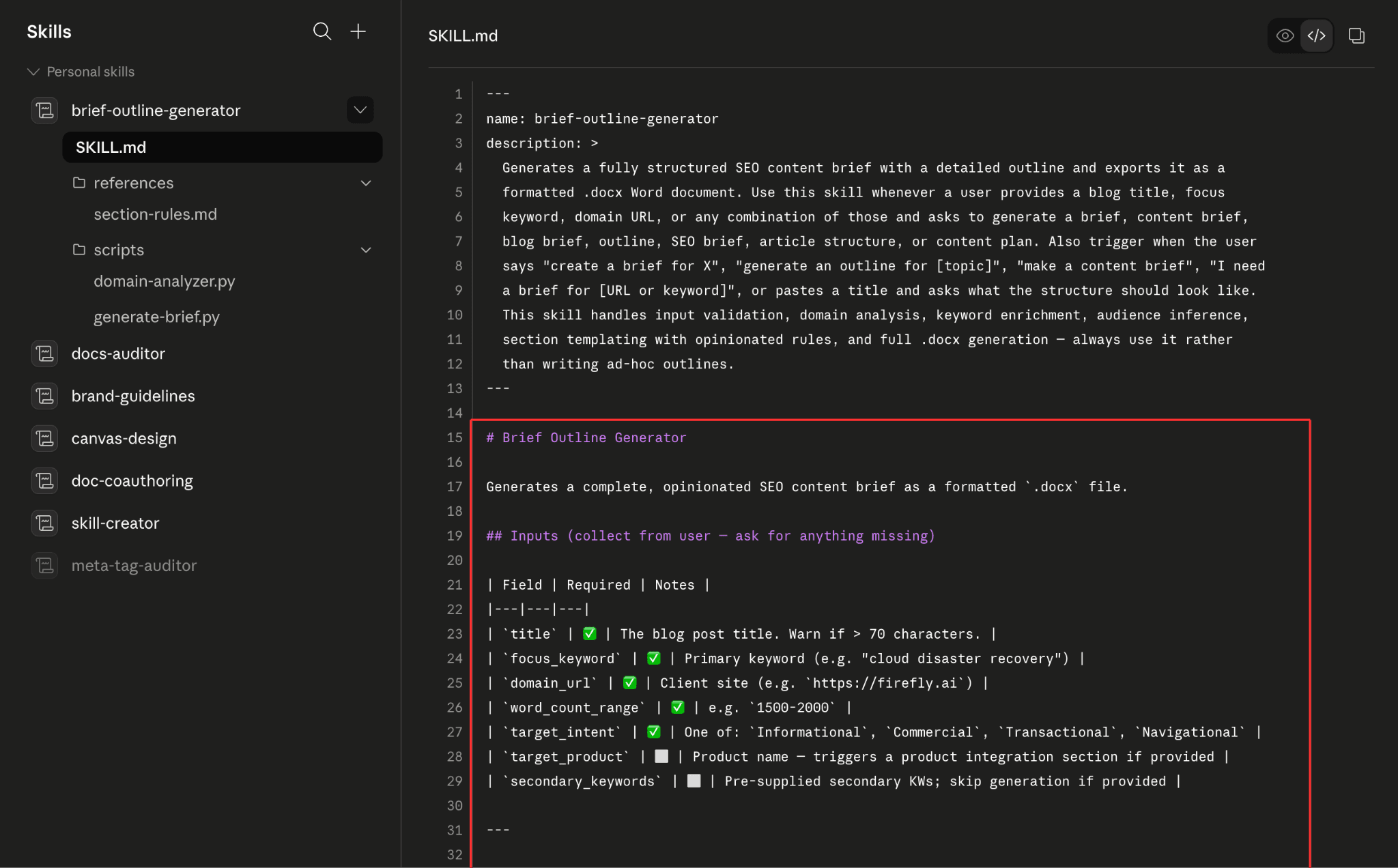
SKILL.md (required): These are instructions that tell Claude exactly how to use the skill and perform the task. This is written in Markdown with YAML frontmatter.
scripts/ (optional): This folder contains the exact algorithmic tools that the agent needs at the time of performing the task.
references/ (optional): This is where you can store documentations that Claude would need to refer to while executing the tasks. Instead of feeding everything at once, it stores the data and knows how to use it when required.
assets/ (optional): This provides the physical structure and static assets such as templates, fonts, icons used in output.
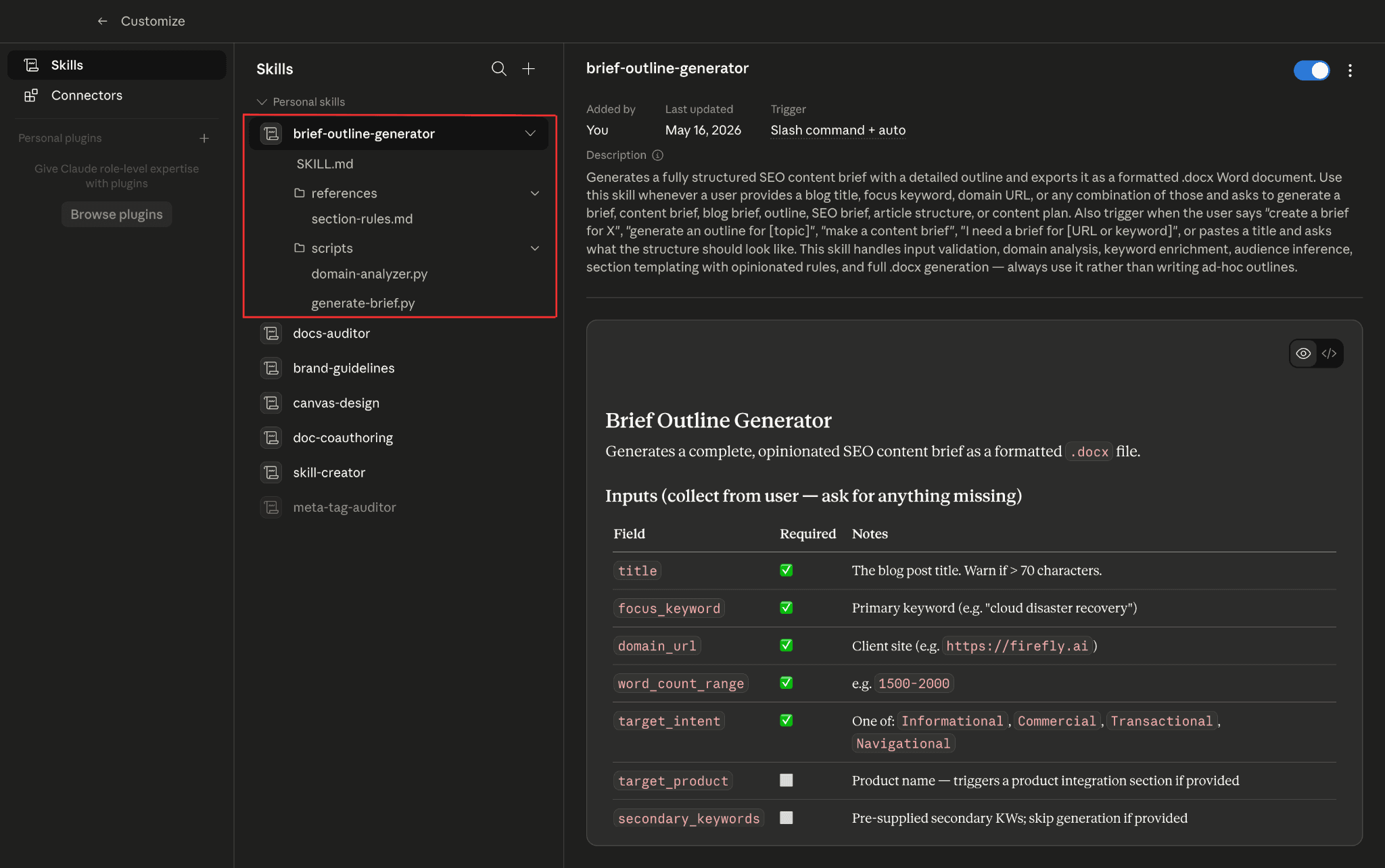
One of the smarter design decisions behind skills is something called progressive disclosure. Claude does not load the entire skill upfront. It works in three levels. The YAML frontmatter at the top is always loaded first, just enough for Claude to know whether this skill applies to the current task. If it does, Claude loads the full SKILL.md body. Supporting files in references/ are only accessed if the instructions specifically call for them. This keeps token usage low while still giving Claude deep, specialized knowledge when it actually needs it.
The Anatomy of a Good SKILL.md File
A well-written skill file has a few core components. Each one serves a specific purpose, and skipping any of them could lead to problems down the line.
1. Name and Description
Start with the skill name and a short description of what it does. This is what gets scanned when Claude decides whether a skill is relevant to a given request. Be specific about what tasks should trigger the skill and, just as importantly, what should not. Vague descriptions lead to the skill firing at the wrong time or not firing when it should.
2. Trigger Conditions
Describe the exact situations when this skill should be used. List the phrases, file types, or task types that should activate it. If there are edge cases where it looks like the skill applies but should not, note those explicitly. The more precise you are here, the more reliably Claude will use the skill at the right moment.
3. Step-by-Step Workflow
This is the heart of the skill. Write out the exact steps Claude should take, in order. Do not leave room for interpretation on things that matter. If step two depends on the output of step one, say so. If there is a command to run before writing any code, that needs to be explicit.
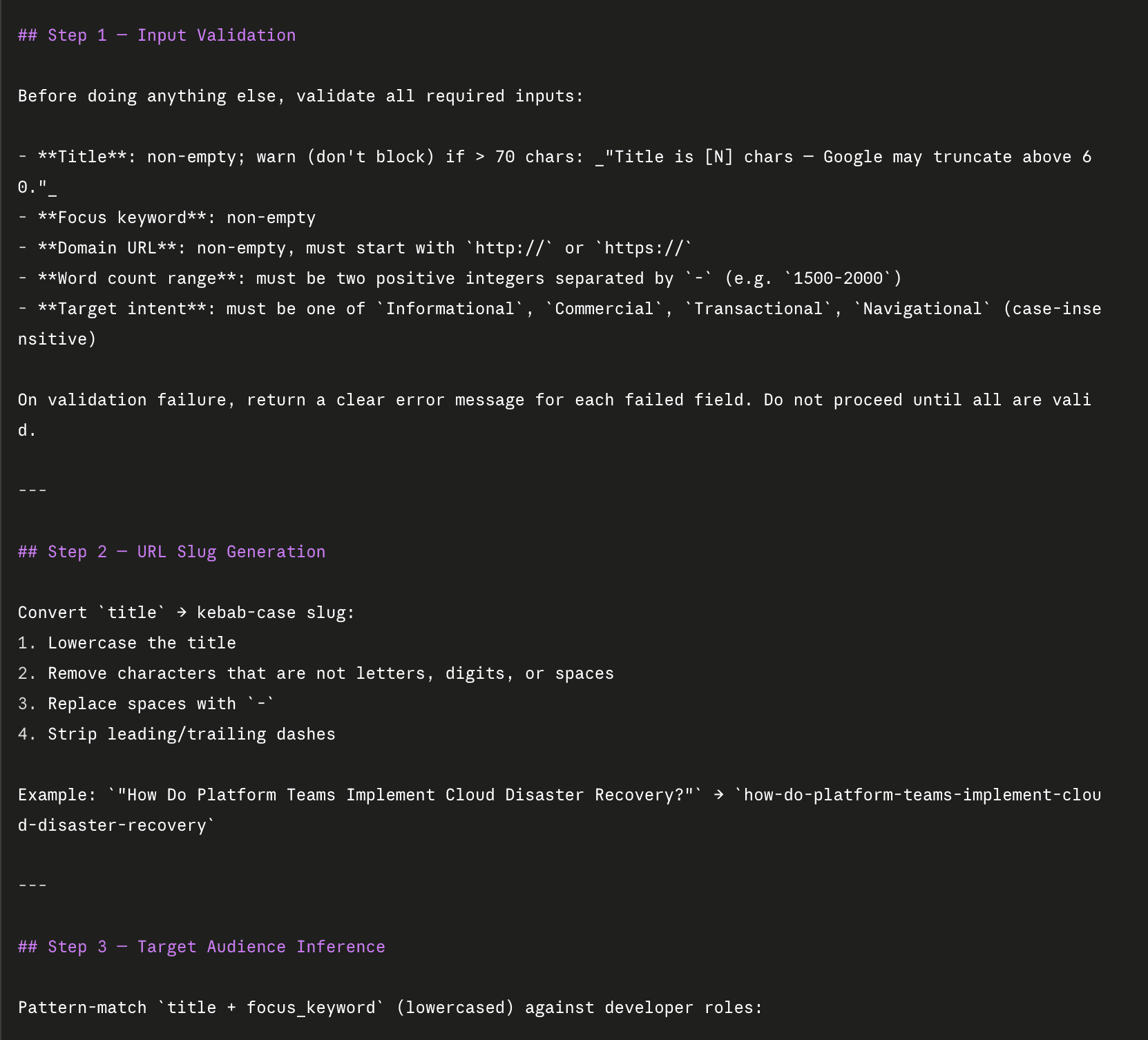
4. Tool and Library Specifications
If the skill requires specific tools, libraries, or commands, list them here. Specify version numbers if they matter. Include install instructions where relevant. This prevents Claude from defaulting to something that might work in general but does not fit your environment.
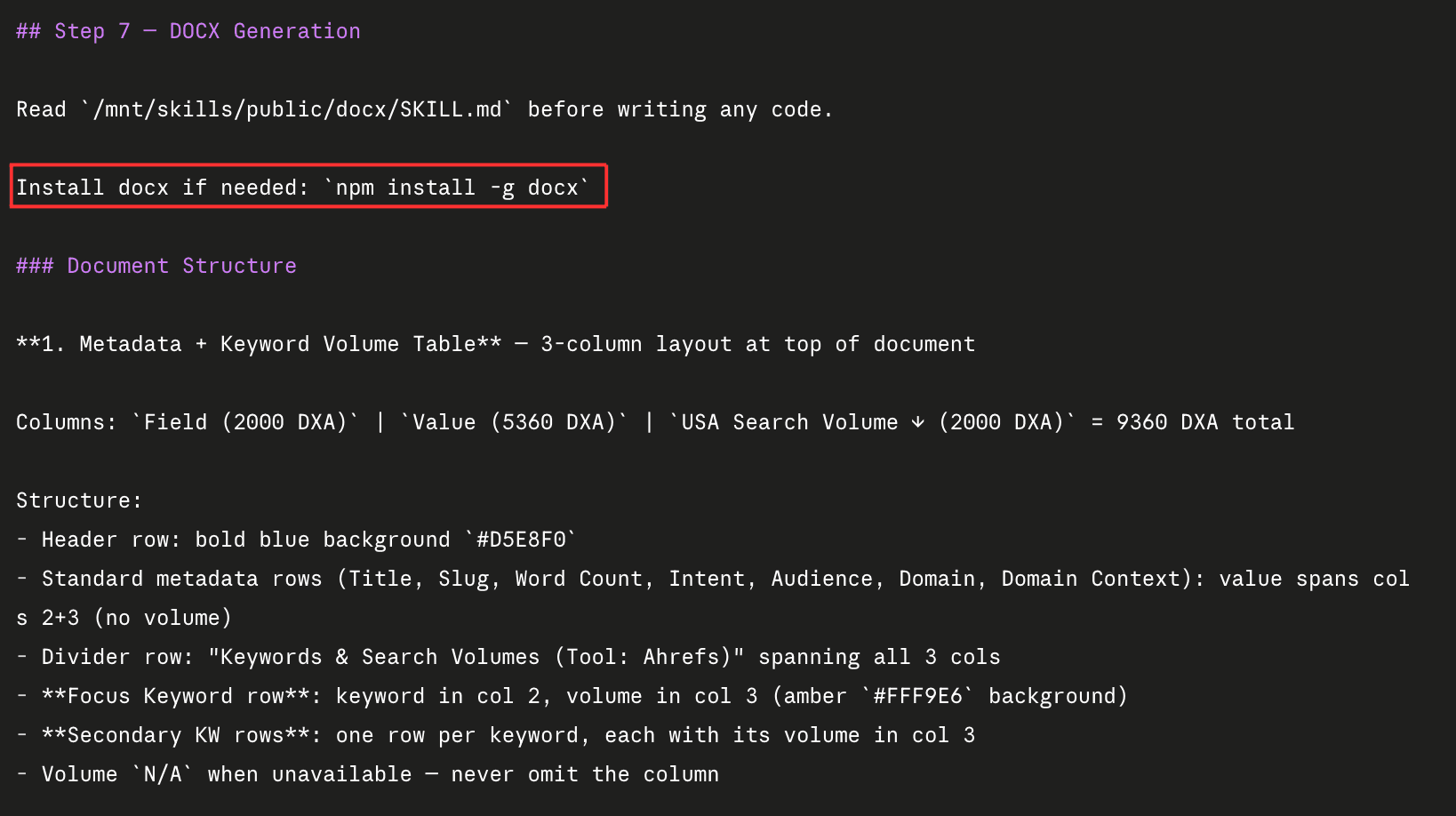
5. Output Format Requirements
Define what the final output should look like. Should it be a file? A Word document? A structured JSON response? Specify formatting rules, naming conventions, and where outputs should be saved. If you have a preferred style or template, describe it here or reference it.
6. Error Handling
Think through what can go wrong and write instructions for those cases. If a file is missing, what should Claude do? If a validation step fails, should it try to fix it automatically or flag the issue? Good error handling instructions save a lot of debugging time later.
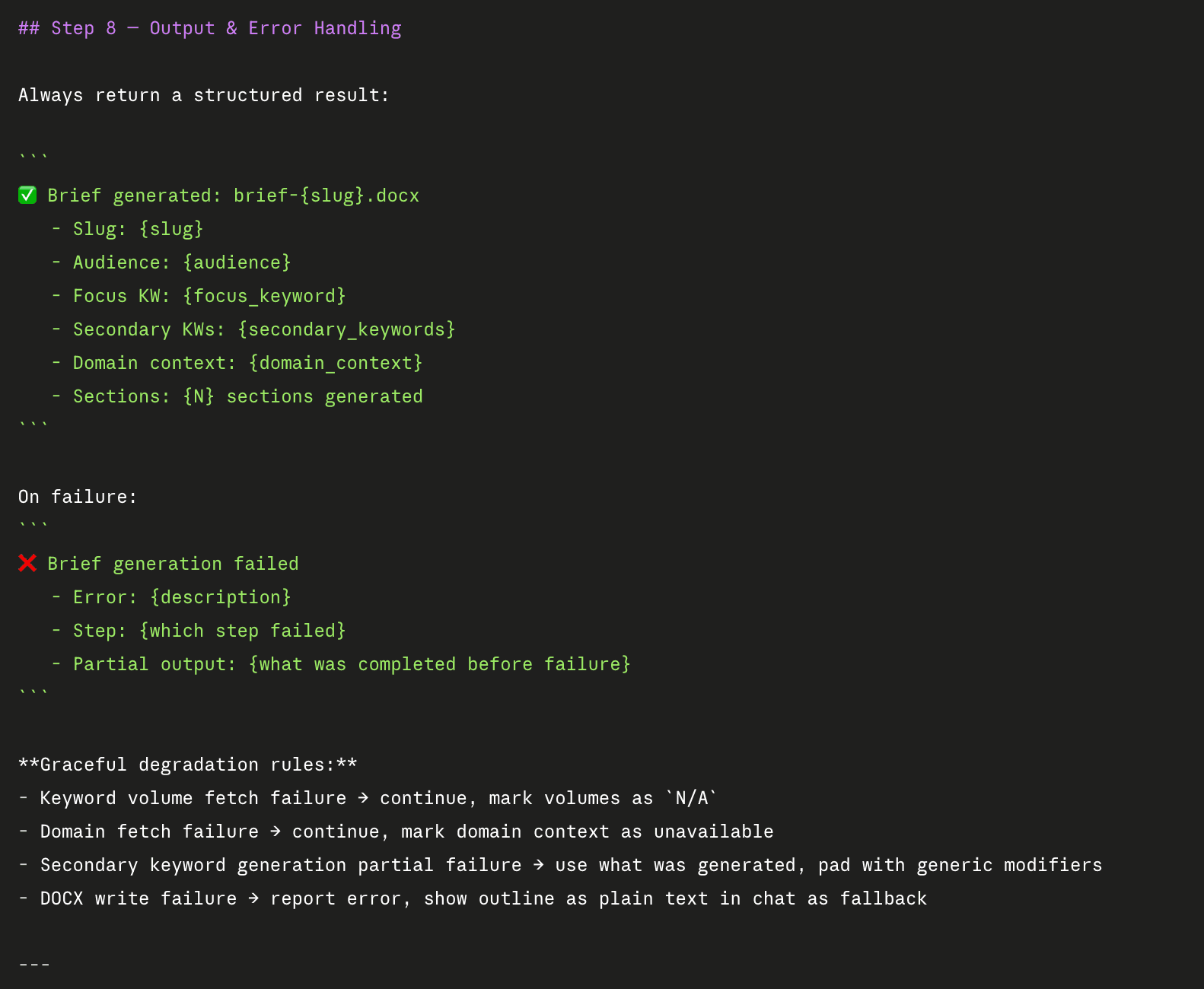
7. Examples
Include at least one sample input and the expected output. Examples clarify intent faster than any amount of description. They also help you spot gaps in your own workflow before you try to use the skill for real.
When Does Building a Skill Make Sense?
Not every task needs a skill. Skills shine in specific situations. If you have repeatable workflows where the steps and output format are always the same, a skill is worth the investment. The same goes for tasks that require domain knowledge Claude would not have by default, or workflows where consistency across a team matters.
Anthropic has observed three main categories where skills tend to add the most value:
Document and Asset Creation
Skills that generate consistent, high-quality output such as reports, presentations, frontend designs, code, or branded documents. These work entirely with Claude's built-in capabilities and do not require any external tools.
Workflow Automation
Multi-step processes that benefit from a defined methodology. Think sprint planning, content pipelines, or audit workflows where the sequence of steps and validation gates need to be consistent every time.
MCP Enhancement
If you have an MCP server that connects Claude to an external service like Notion, Linear, or Asana, a skill adds the knowledge layer on top. The MCP gives Claude access to the tools. The skill teaches Claude how to use those tools properly. Without the skill, users connect to the MCP but often do not know what to do next. With it, workflows activate automatically.
Writing the SKILL.md File
The SKILL.md file has two main parts: the YAML frontmatter at the top and the instruction body below it.
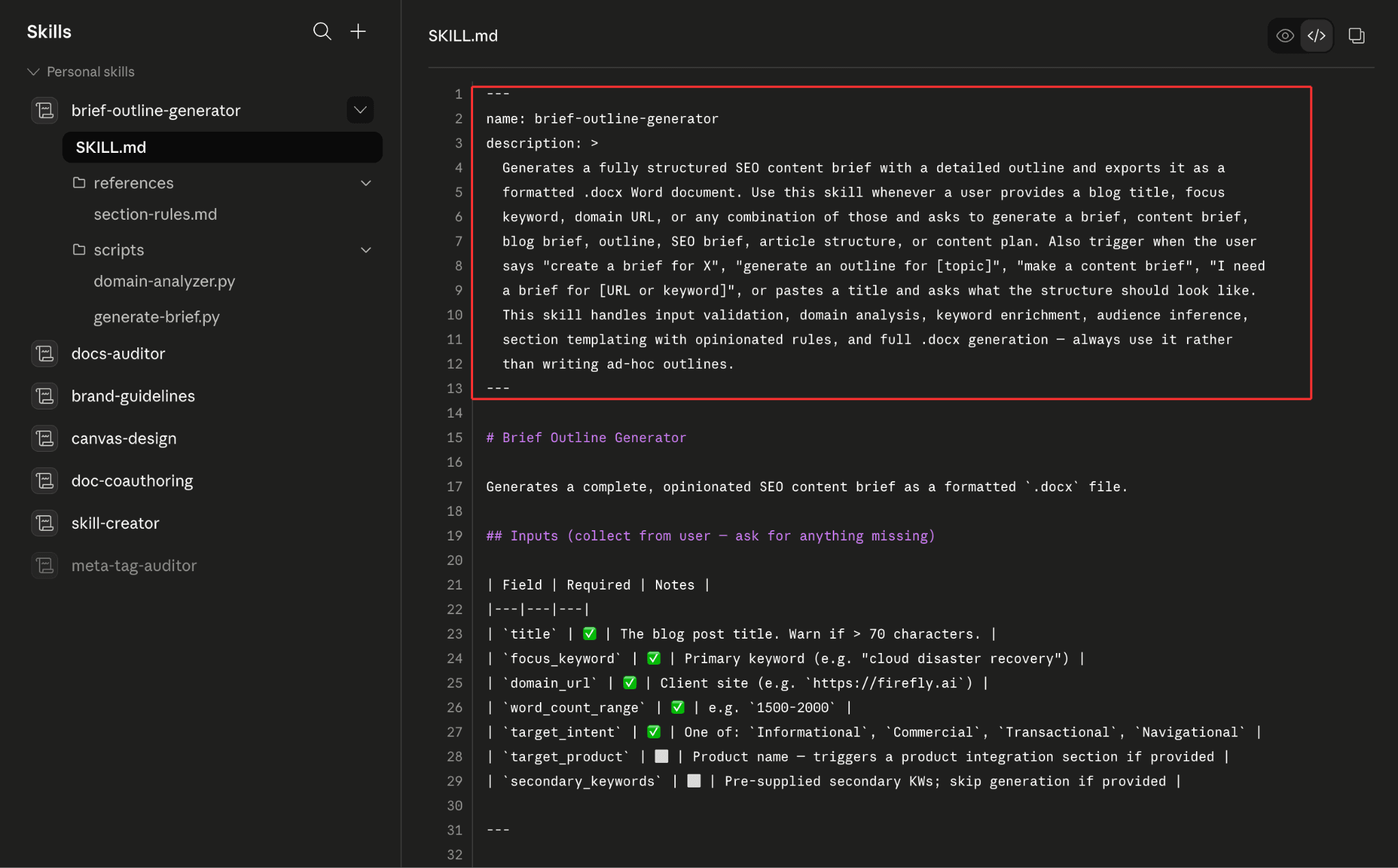
The YAML Frontmatter
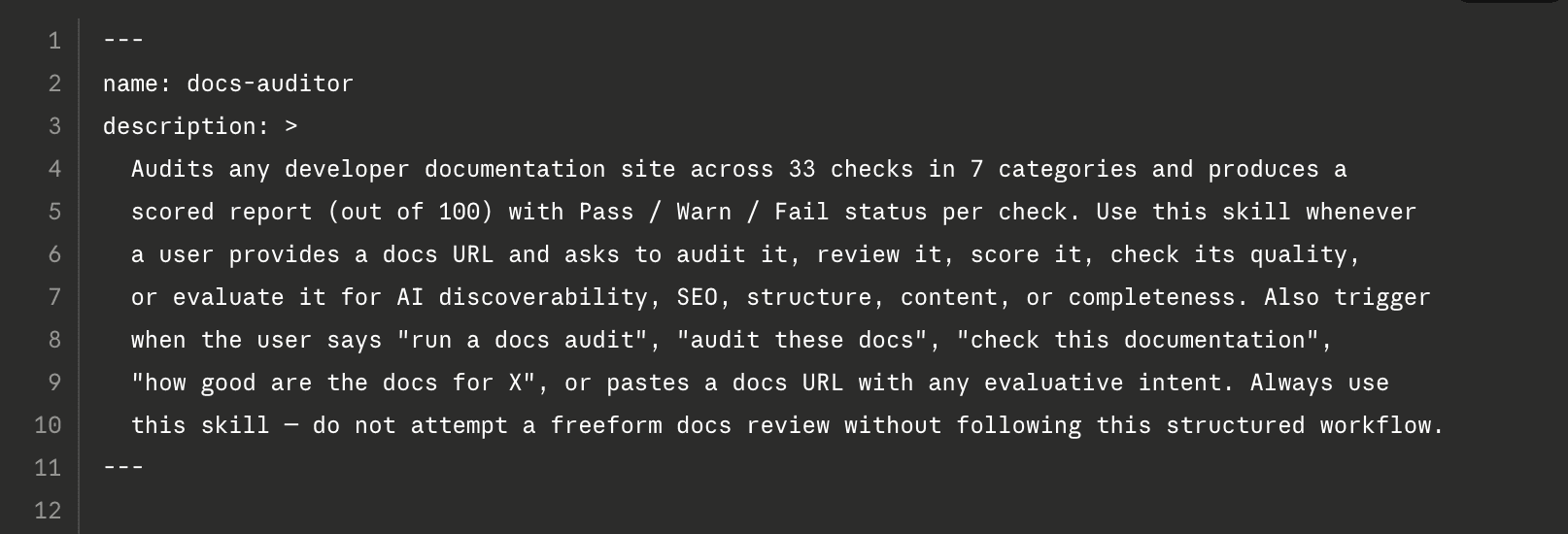
This is the most critical part of the entire file. The frontmatter is what Claude reads to decide whether to load the skill at all. Two fields are required: name and description. The name must be in kebab-case with no spaces or capitals. The description must include both what the skill does and when to use it, with specific trigger phrases a user might actually say. It must stay under 1024 characters and cannot contain XML angle brackets.
Here is the difference between a description that works and one that does not:
Works: "Audits any developer documentation site across 33 checks in 7 categories and produces a scored report (out of 100) with Pass / Warn / Fail status per check. Use this skill whenever a user provides a docs URL and asks to audit it, review it, score it, check its quality, or evaluate it for AI discoverability, SEO, structure, content, or completeness. Also triggered when the user says "run a docs audit", "audit these docs", "check this documentation", "how good are the docs for X", or pastes a docs URL with any evaluative intent. Always use this skill and do not attempt a freeform docs review without following this structured workflow."
Does not work: "Helps with documentation analysis." too vague, no trigger phrases, Claude will not know when to use it.
Optional fields include license, compatibility notes, and custom metadata like author, version, or a linked MCP server name.
The Instruction Body
After the frontmatter comes the actual workflow. A well-structured SKILL.md typically covers the following, in order:
A clear step-by-step workflow with explicit sequencing and dependencies
Tool or script references with exact commands, not vague descriptions
Error handling for the failure scenarios you can anticipate
At least one example showing a sample input and the expected output
Links to reference files in the references/ folder for anything detailed
Keep the instructions concise and direct. Bullet points and numbered lists work better than long paragraphs. Move detailed documentation to references/ and link to it rather than embedding everything inline. The goal is a SKILL.md that stays under 5,000 words.
Technical Rules Worth Getting Right
A few non-negotiable requirements that catch people out:
The file must be named exactly SKILL.md, case-sensitive. SKILL.MD and skill.md will not work.
The skill folder must use kebab-case naming. No spaces, no underscores, no capitals.
Do not include a README.md inside the skill folder. Documentation for human readers goes at the repo level, not inside the skill.
XML angle brackets are forbidden anywhere in the frontmatter for security reasons.
Skill names cannot include the words claude or anthropic, these are reserved.
Testing and Iterating
The most effective approach Anthropic has seen from early skill builders is to iterate on a single challenging task until Claude handles it well, then extract that winning approach into a skill. Broad testing across many scenarios too early tends to slow things down. Get one thing working reliably first, then expand.
Testing should cover three areas:
Triggering Tests
Run 10 to 20 queries that should activate the skill, including paraphrased versions of the same request. Also run queries that should not trigger it and confirm the skill stays quiet. A quick way to debug is to ask Claude directly: "When would you use the [skill name] skill?" Claude will quote the description back to you, which makes gaps obvious.
Functional Tests
Verify that the skill produces correct outputs, that any API or MCP calls succeed, and that error handling behaves as expected. Run the same request three to five times and compare the results for consistency.
Performance Comparison
Compare the same task with and without the skill enabled. Count how many back-and-forth messages it takes, how many tool calls, and how many tokens are consumed. A well-built skill should cut all three significantly.
After launch, watch for two signals. Undertriggering means the skill is not loading when it should, i.e. the fix is usually adding more specific keywords and trigger phrases to the description. Overtriggering means it loads for unrelated queries, i.e. the fix is adding negative triggers or narrowing the scope of the description.
Getting Started
The best way to build your first skill is to pick one task you repeat regularly, write down exactly how you would explain it to someone new, and turn that explanation into a SKILL.md file.
Building Your First Claude Skill: A Step-by-Step Example
Let's say you run a small business and every week you ask Claude to write a follow-up email after a sales call, one small piece of the sales-ops side of GTM enablement that most teams never bother to systematize. You always want the same tone, the same structure, and the same length. But every Monday you find yourself explaining it all over again.
That is exactly the kind of task a skill is built for. Let's build it together.
Step 1: Pick the Task
The task is simple: generate a follow-up email after a sales call. The inputs are the client's name, what was discussed, and the next steps agreed upon. The output is always a short, professional email with three sections — a thank you, a summary of the discussion, and the next steps.
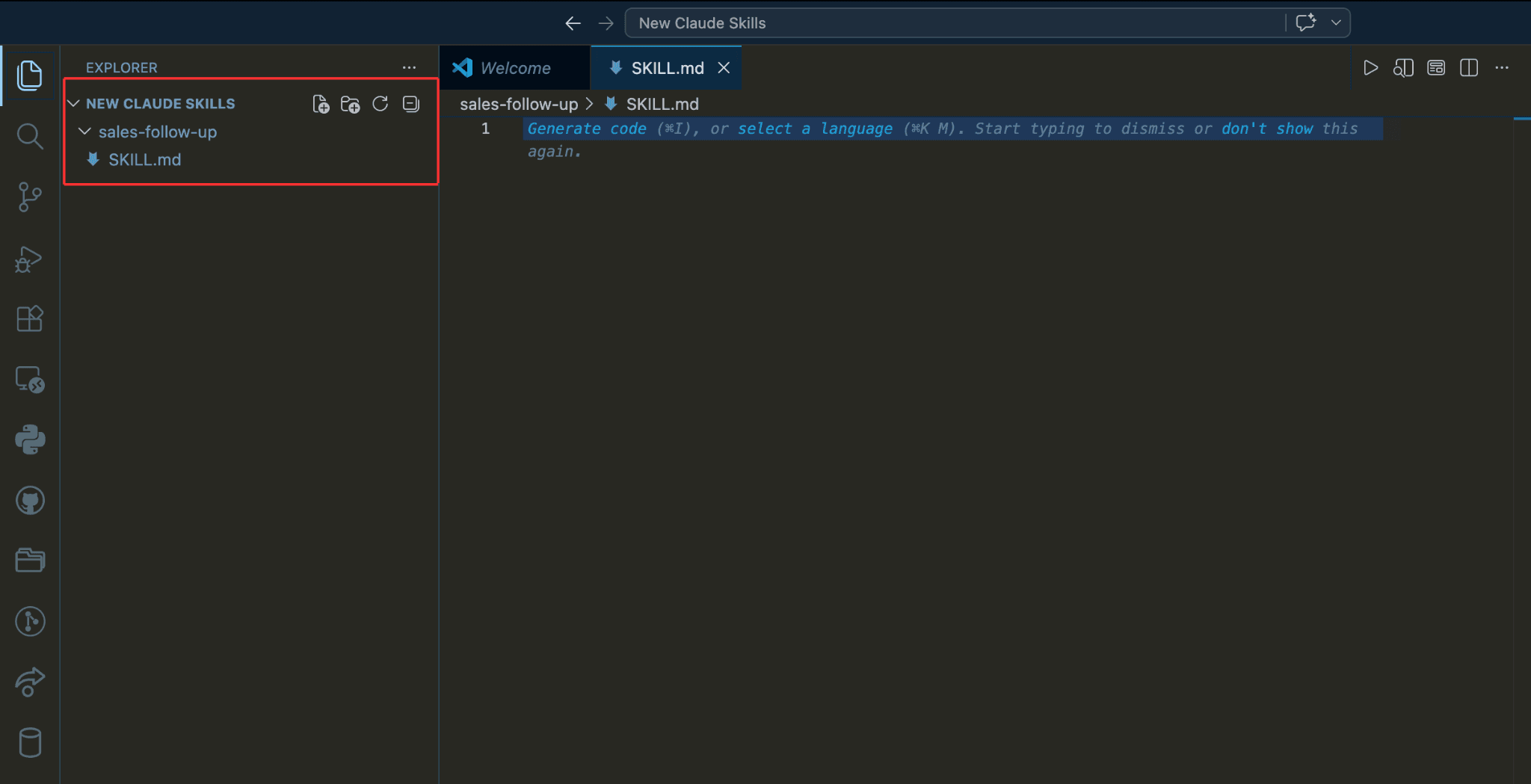
Step 2: Create the Folder
On your computer, create a folder called sales-follow-up. Inside it, create one file called SKILL.md. That is all you need to start. The folder structure looks like this:
sales-follow-up/
└── SKILL.md
Step 3: Write the Frontmatter
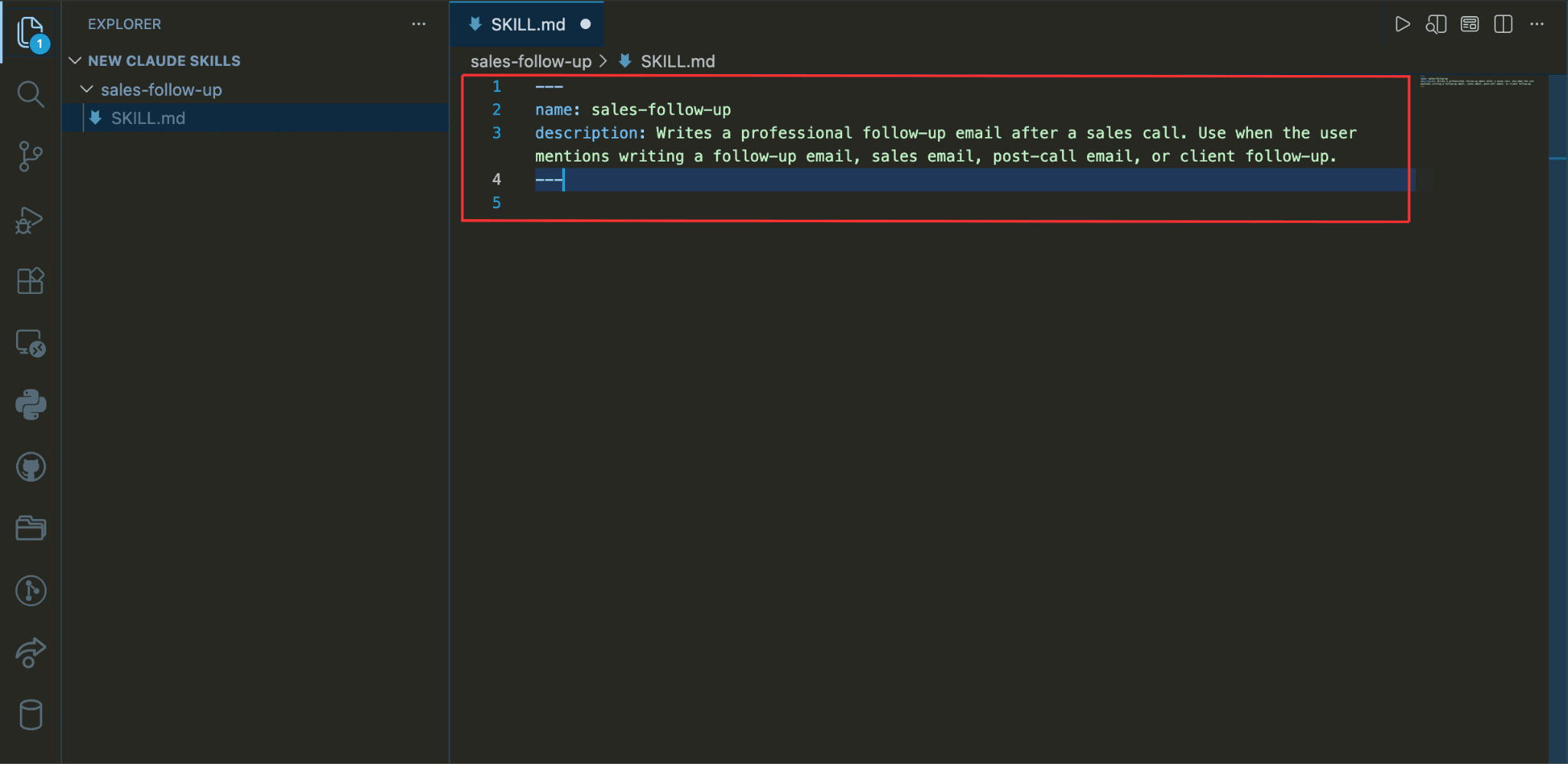
Open SKILL.md and write this at the very top:
---
name: sales-follow-up
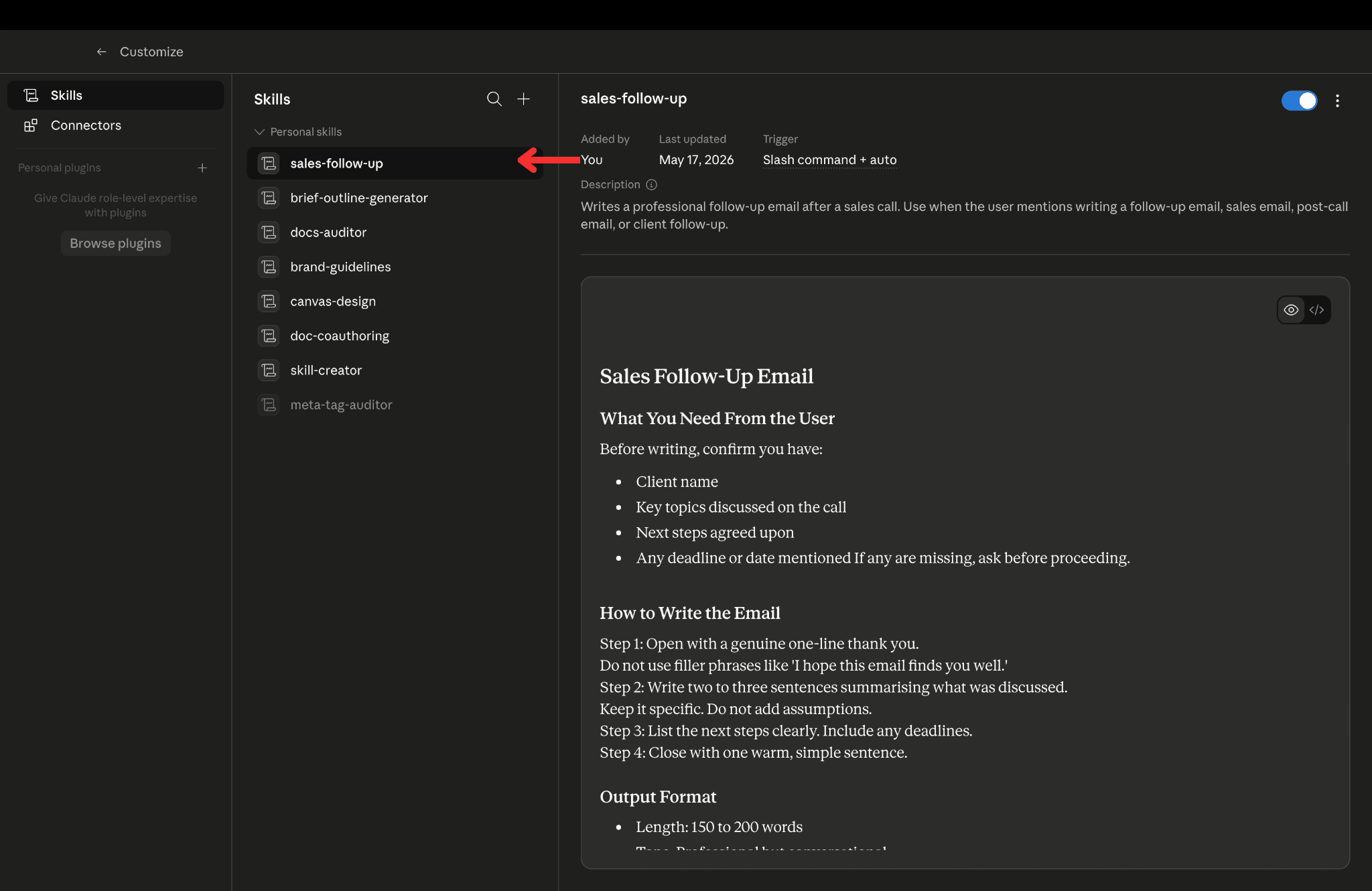
description: Writes a professional follow-up email after a sales call. Use when the user mentions writing a follow-up email, sales email, post-call email, or client follow-up.
---
The description has two jobs: telling Claude what the skill does and telling it when to load it. The phrases 'follow-up email,' 'sales email,' 'post-call email,' and 'client follow-up' are the actual words someone would use. Claude matches against these when deciding whether to reach for this skill.
Step 4: Write the Instructions
Below the frontmatter, write the workflow. Here is what a good instruction body looks like for this skill:
# Sales Follow-Up Email

## What You Need From the User

Before writing, confirm you have:

- Client name
- Key topics discussed on the call
- Next steps agreed upon
- Any deadline or date mentioned

If any are missing, ask before proceeding.

## How to Write the Email

Step 1: Open with a genuine one-line thank you.
Do not use filler phrases like 'I hope this email finds you well.'

Step 2: Write two to three sentences summarising what was discussed.
Keep it specific. Do not add assumptions.

Step 3: List the next steps clearly. Include any deadlines.

Step 4: Close with one warm, simple sentence.

## Output Format

- Length: 150 to 200 words
- Tone: Professional but conversational
- No subject line unless the user asks for one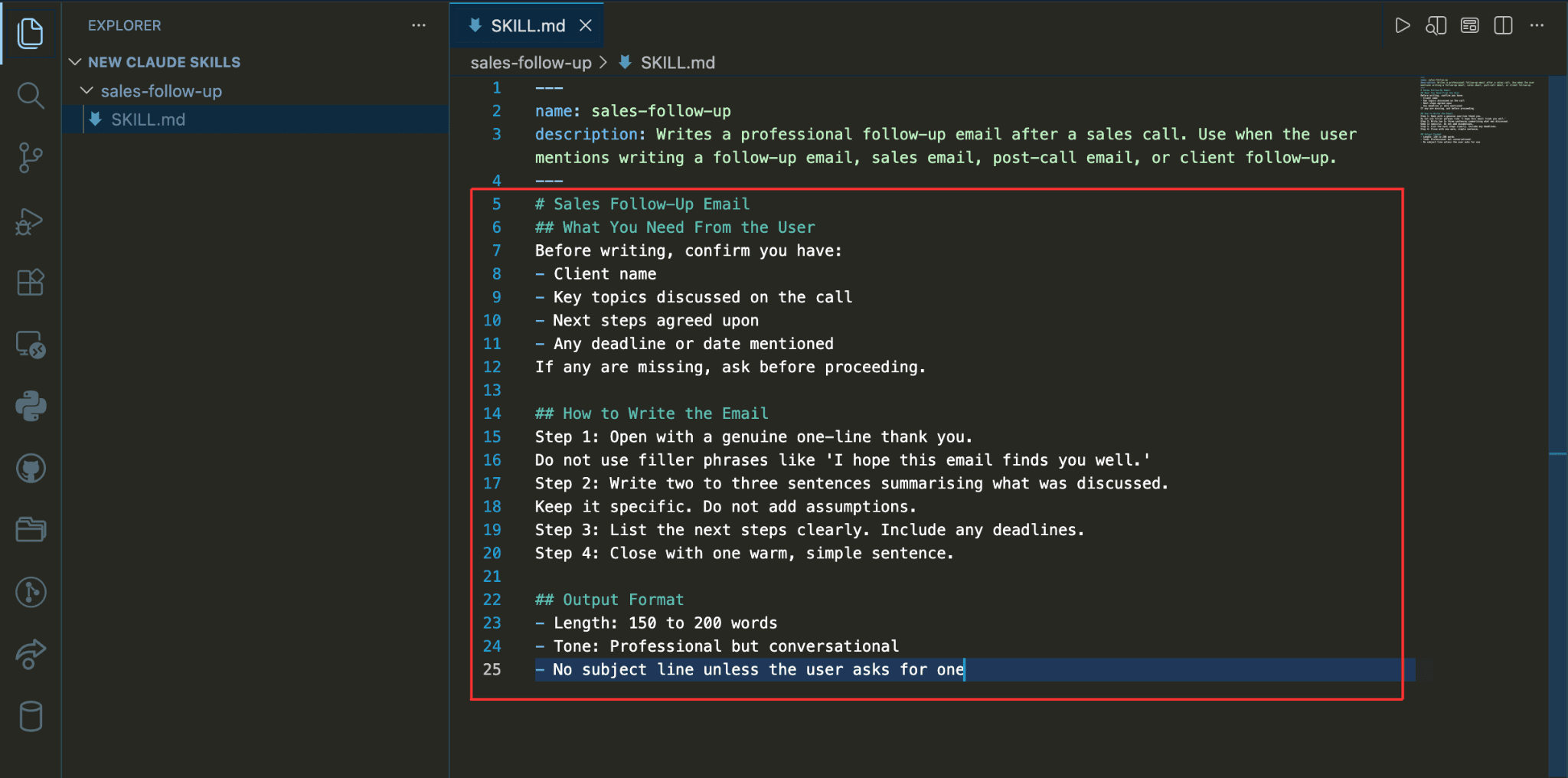
Step 5: Upload It
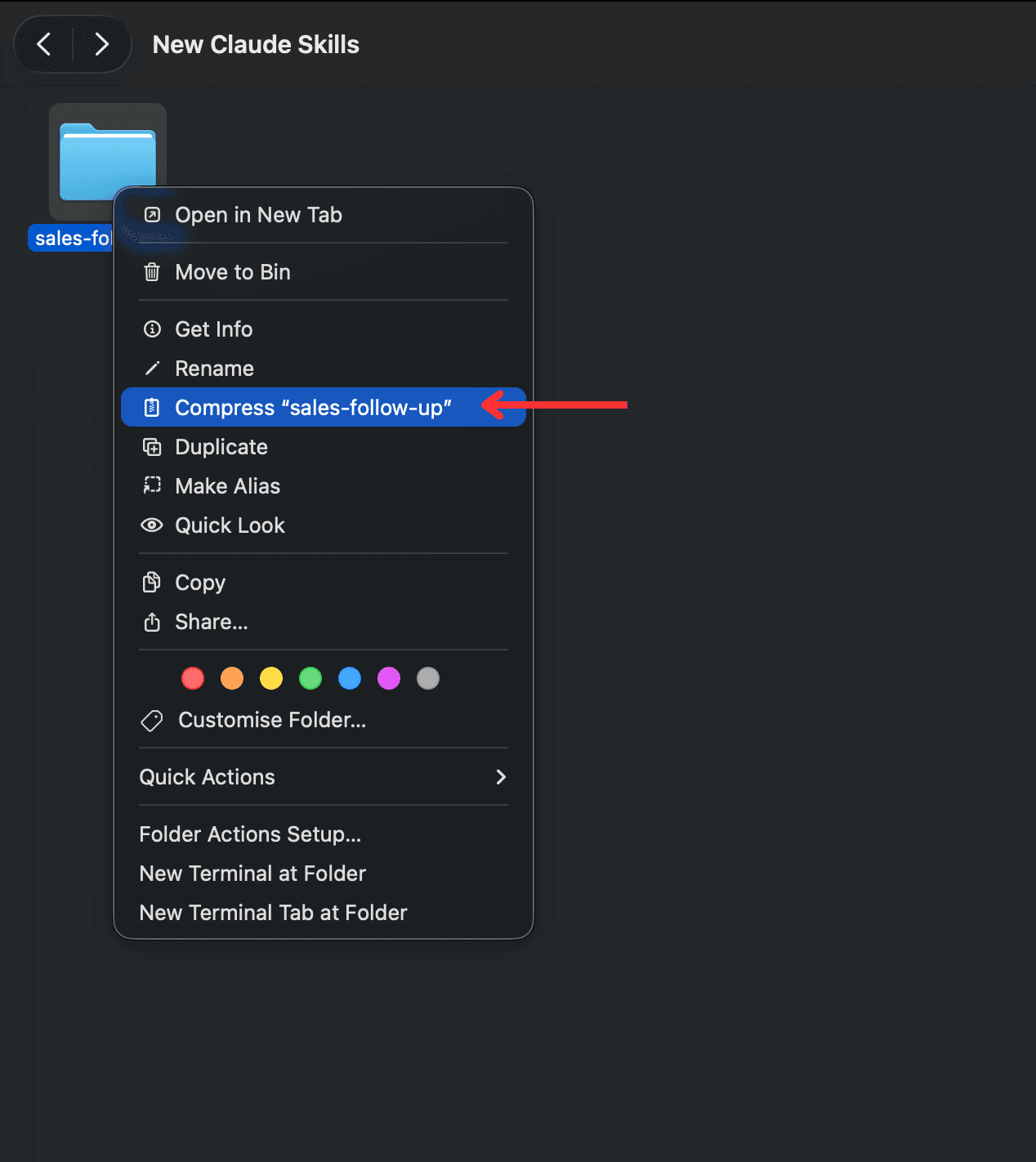
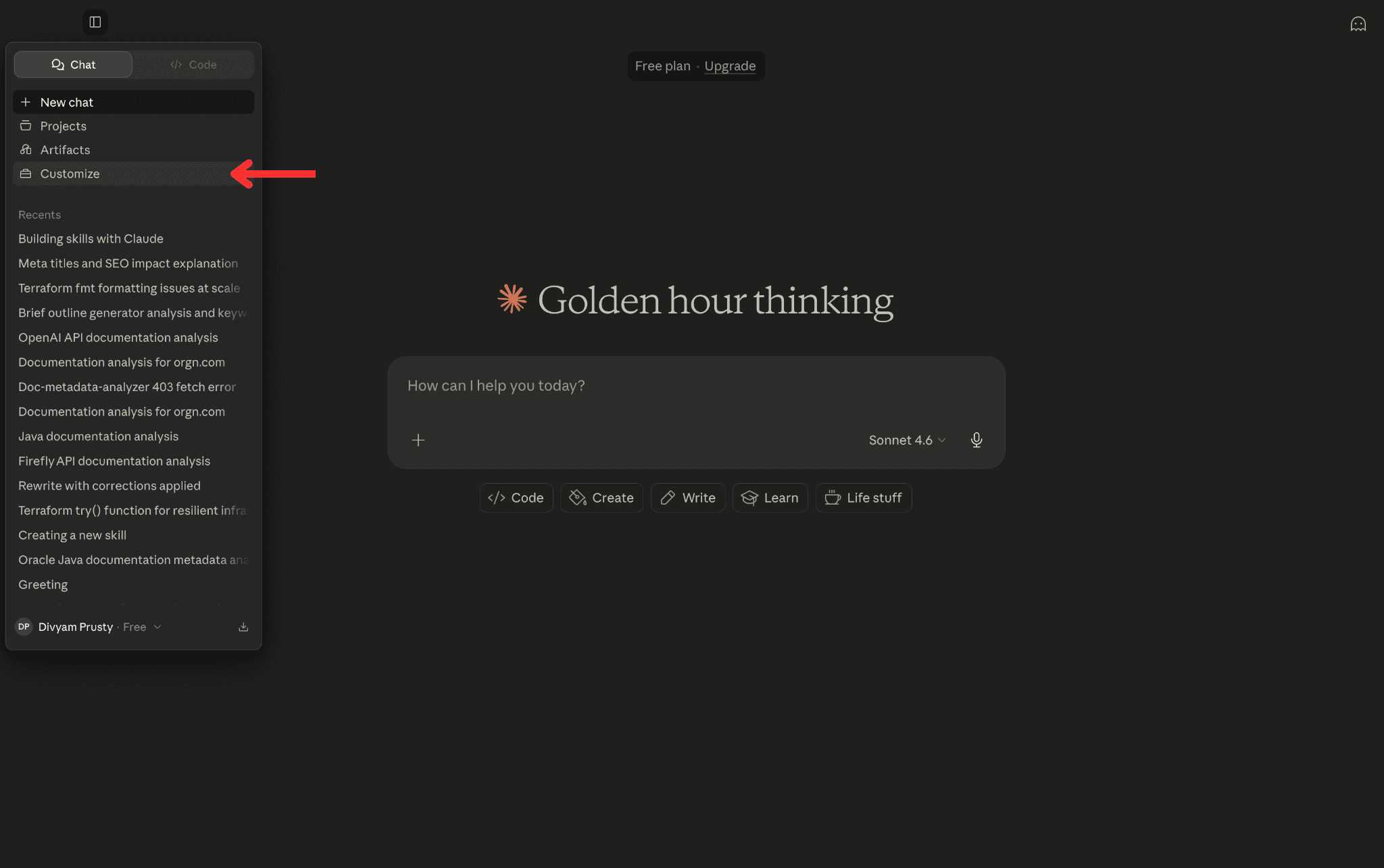
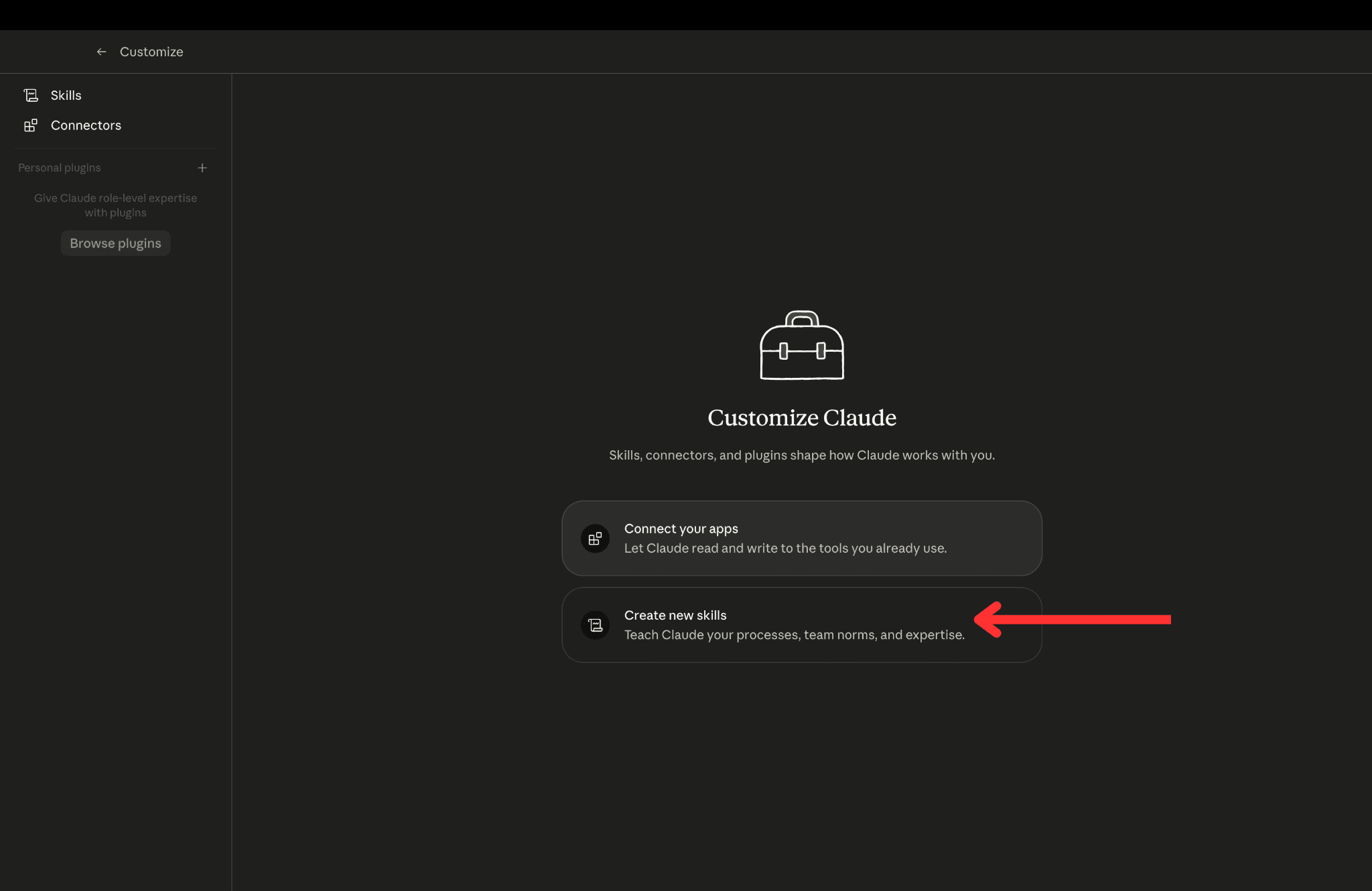
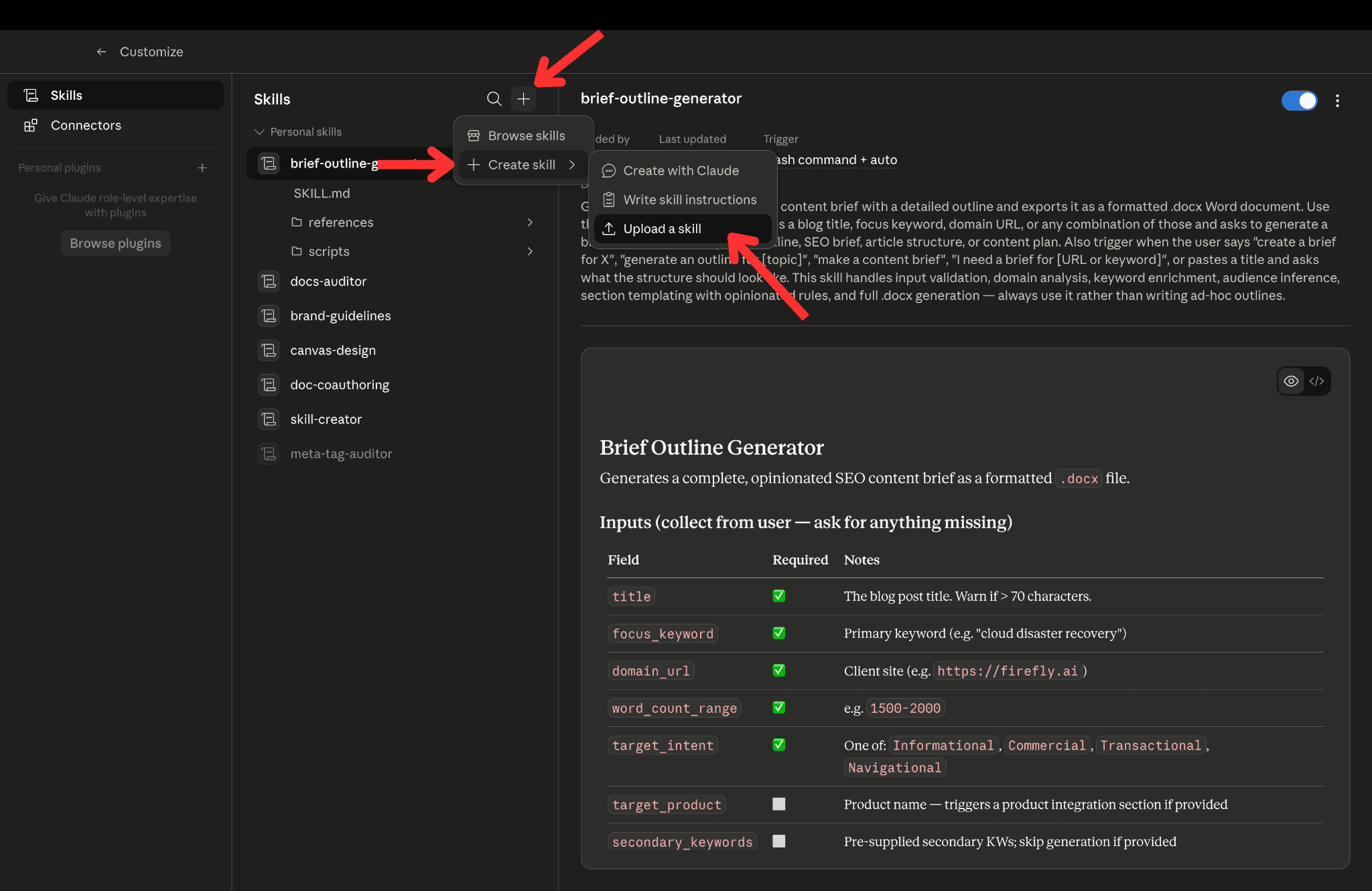
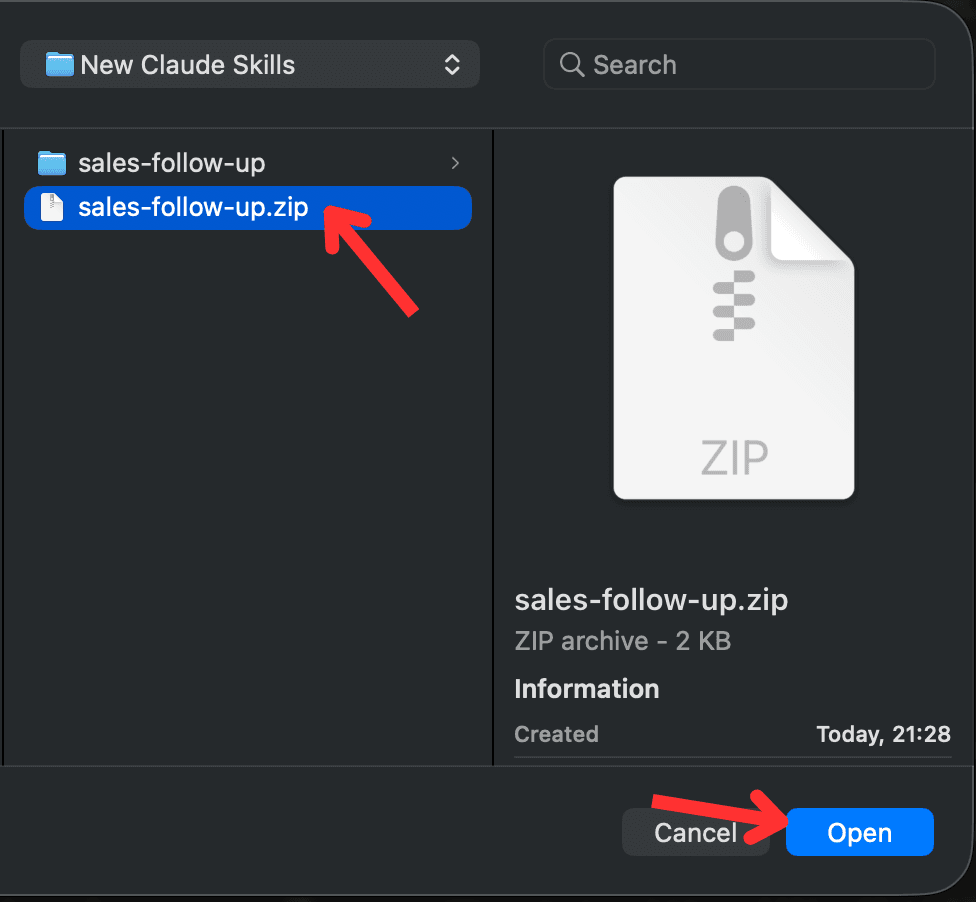
Zip the sales-follow-up folder. Go to Claude.ai, open Customize, find the Skills section, click on Create new Skills, and upload the zip file. Toggle the skill on.
Step 6: Test the Triggering
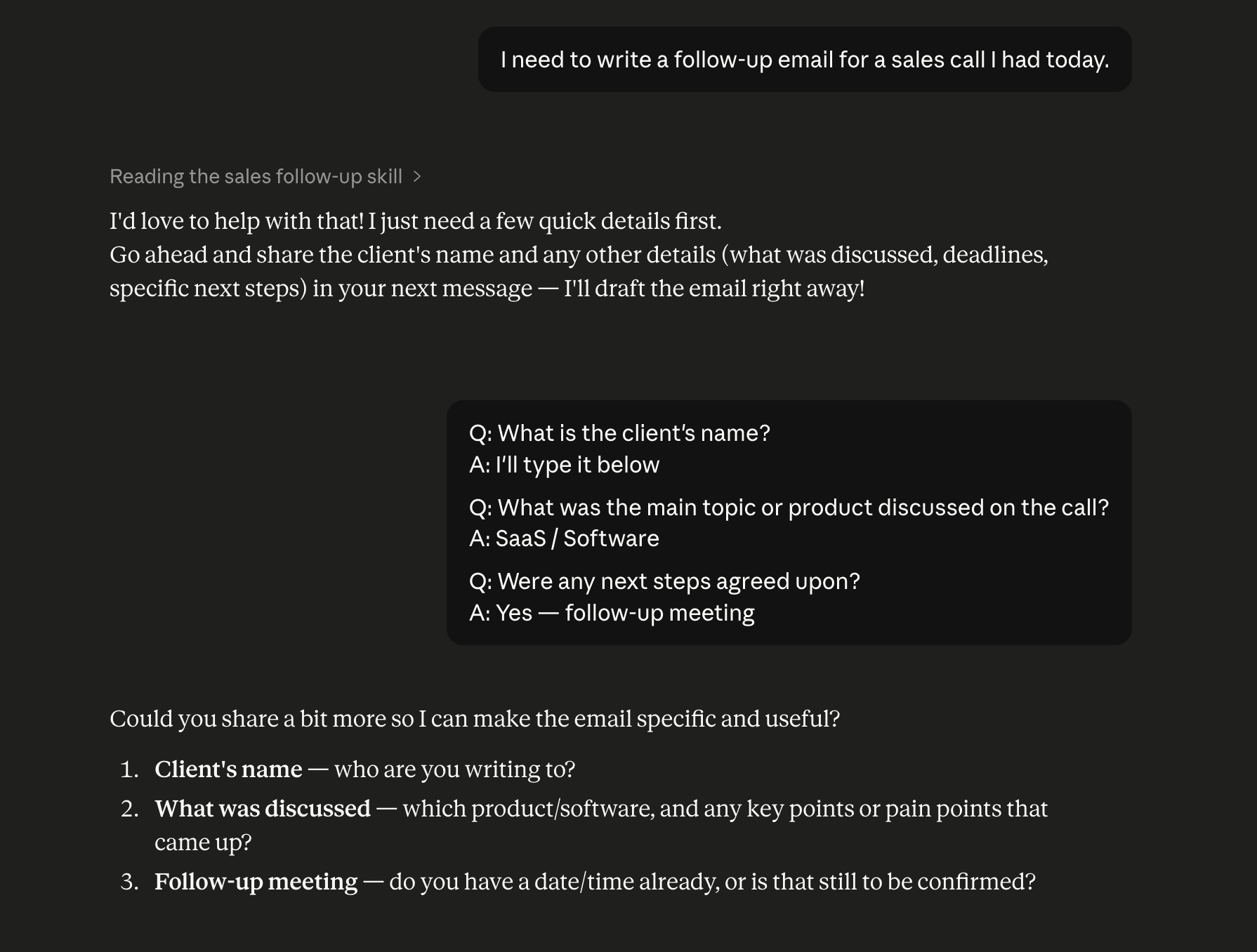
Type this into a new chat: 'I need to write a follow-up email for a sales call I had today.' Claude should automatically load the skill and ask for the client name, discussion points, and next steps.
Now try a paraphrased version: 'Can you help me write a post-call email to a client?' It should still trigger. If it does not, go back to the description and add 'post-call email' as an explicit trigger phrase.
Step 7: Try a Real Task
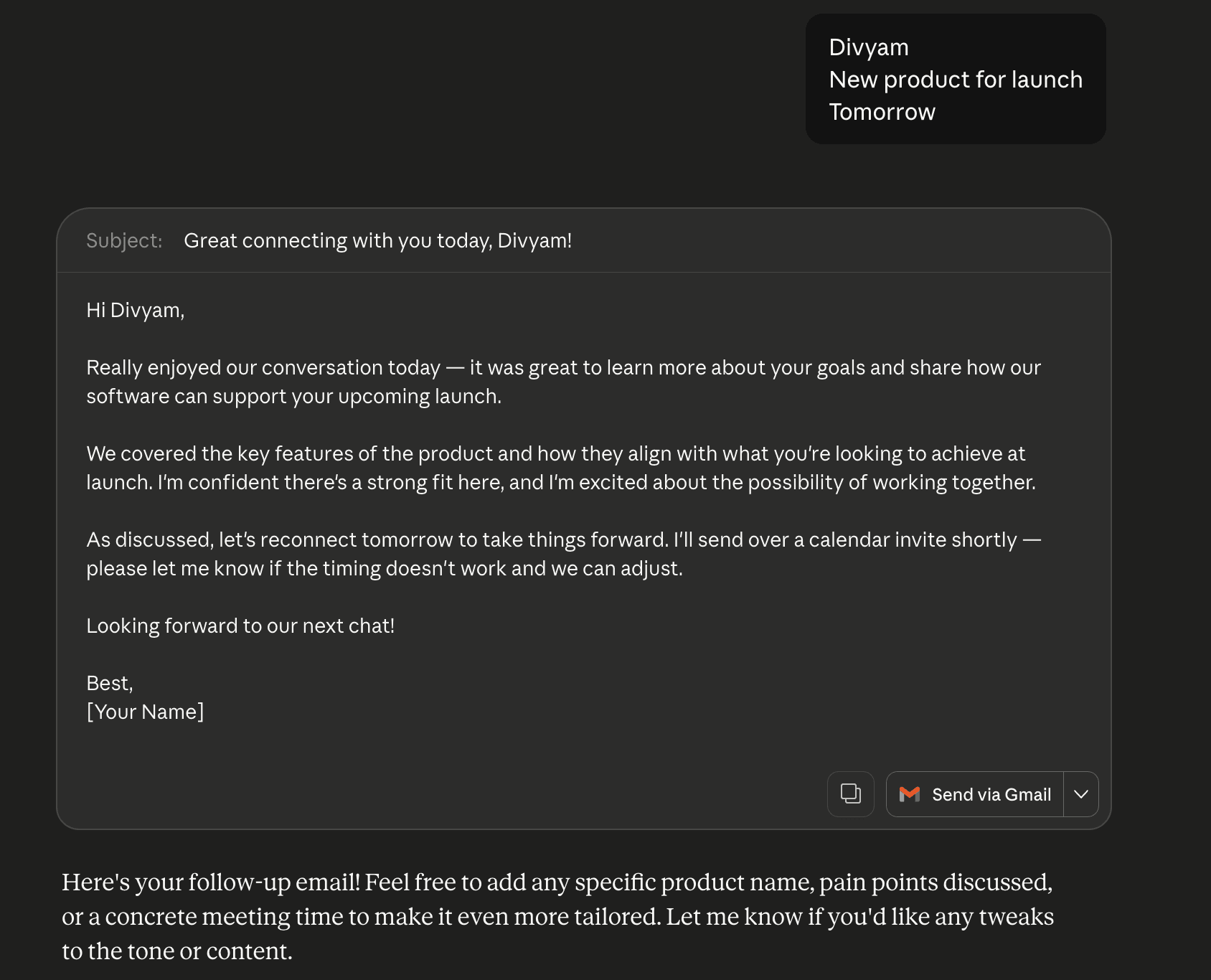
Give Claude the actual details: 'Client is James at Bluewave Studio. We talked about their rebranding timeline and budget constraints. The next step is that I send over three proposal options by Friday.'
Claude should produce a clean, structured follow-up email, 150 to 200 words, no filler, next steps clearly stated. If something is off, go back into SKILL.md, find the step that caused it, tighten the instruction, re-upload, and test again.
Step 8: You Are Done
That is a working skill. One folder, one file, a few minutes of setup. From now on, every time you or anyone on your team asks Claude to write a follow-up email, it loads these instructions automatically and produces the same quality of output, without anyone having to explain it again.
Claude Skills vs MCP, Agents, and Commands
Understanding how Claude skills compare to other Claude features helps you choose the right tool for the job. Each serves a different purpose, and the best Claude skills are often those that combine cleanly with the others.
Claude Skills vs MCP
MCP (Model Context Protocol) servers give Claude access to external tools and services: Notion, Linear, Asana, GitHub, and so on. A skill adds the knowledge layer on top. The MCP gives Claude the ability to act. The skill teaches it how to act correctly for your workflow.Without a skill, users connect an MCP server and often do not know what to do next. With a skill, the workflow activates automatically and Claude knows exactly how to use the tools.
| Claude Skills | MCP | |
|---|---|---|
| Purpose | Define how Claude approaches a task | Connect Claude to external tools and APIs |
| Lives in | A SKILL.md file in your workspace | A server Claude connects to |
| Best for | Codifying workflow steps and output rules | Real-time data, actions in external systems |
| Can combine? | Yes, skills orchestrate MCP tool use | Yes, MCP extends what a skill can do |
Claude Skills vs Agents
Agents are autonomous Claude instances that plan and execute multi-step tasks with minimal human input. Skills are not agents: they are reusable instruction sets a human or an agent can invoke. A skill makes a single category of work reliable. An agent decides when and how to use multiple skills together to complete a larger goal.
| Claude Skills | Agents | |
|---|---|---|
| Autonomy | Follows defined instructions | Plans and decides independently |
| Scope | One task category | Multi-step, multi-tool goals |
| Invoked by | User message or keyword match | Orchestrator or goal prompt |
| Use together? | Yes, agents can invoke skills | Yes, skills make agents more reliable |
Claude Skills vs Commands
Commands are short slash-style instructions you type inline, such as /summarize or /translate. They are one-time triggers with no persistent memory. A skill, by contrast, is a file that loads automatically when the context matches, carries full workflow instructions, and produces consistent output every time. Use commands for quick, one-off tasks. Use skills for anything you run repeatedly.
| Claude Skills | Commands | |
|---|---|---|
| Persistence | Loaded from file, always available | One-time, typed in the moment |
| Complexity | Full multi-step workflow | Single-action instruction |
| Output control | Defined format and rules | No format enforcement |
| Best for | Repeatable, structured work | Quick ad hoc tasks |
Common Mistakes and How to Avoid Them
Most skill-building problems come down to a handful of recurring issues.
Vague trigger descriptions are the most common source of frustration. If the description does not clearly define when to use the skill, Claude either uses it when it should not, or does not use it when it should. Spend more time on this section than you think is necessary.
Overloading a skill with too many responsibilities makes it brittle. If you find yourself adding a lot of conditional logic, that is a sign you might need two skills instead of one.
Skipping the examples section often leads to misaligned outputs. Even one concrete example of input and expected output dramatically improves how reliably Claude interprets the workflow.
Not accounting for error states means Claude will improvise when something goes wrong. That improvisation is usually not what you want. Write specific instructions for the failure scenarios you can anticipate.
Conclusion
Claude skills are one of those solutions that feel obvious once you have used them. Write the workflow down once, in a structured file, and Claude follows it reliably every time, regardless of who is asking, how they phrase it, or whether it is their first time running the task or their fiftieth.
A skill that takes a few hours to build saves that time back on every single session that follows. For teams, the impact multiplies further. Everyone works from the same instructions, gets the same quality of output, and stops depending on whoever wrote the best prompt that day.
What makes Claude skills worth investing in is how much ground they cover. A well-built skill handles the full picture: the workflow steps, the tools, the output format, the error states, the edge cases. It does not just tell Claude what to do. It tells Claude how to do it the way you actually need it done. That depth is what separates a skill from a prompt, and it is what makes the results consistent enough to actually rely on.
Building one follows a clear path. Identify the task, plan the use cases, write the frontmatter carefully, structure the instructions with specificity, test across obvious and paraphrased requests, and iterate based on what you observe. The best Claude skills guide you through five workflow patterns that handle most of what teams realistically need. Combined with an MCP integration and Claude Code skills for development workflows, a skill transforms raw tool access into a workflow that runs itself.
The hardest part is not building the skill. It is pausing long enough to recognise which task deserves one. Once that clicks, the rest compounds naturally, and Claude stops being a tool you configure every time and starts being a system that already knows what you need.
Frequently Asked Questions
How do I add or install a Claude skill?
Create a folder with your SKILL.md file and any supporting assets. Zip the folder. In Claude.ai, go to Customize, open the Skills section, click Create New Skill, and upload the zip file. Toggle the skill on to activate it. In Claude Code, place the skill folder in your project's .claude/skills/ directory and it will be picked up automatically.
How do I know if my skill is triggering correctly?
The fastest way to check is to ask Claude directly: "When would you use the [skill name] skill?" Claude will read the description back to you, and any gaps become obvious immediately. If the answer sounds vague or misses common use cases, the description needs more specific trigger phrases.
What is the difference between a skill and a regular prompt?
A prompt is a one-time instruction: you type it, Claude follows it, and that context is gone. A skill is a reusable workflow file that Claude loads automatically when the task matches. Skills also support progressive disclosure, error handling, tool specifications, and output formatting rules that would be impractical to repeat in every prompt. For anything you run more than once, a skill is the better choice.
How do Claude skills work in Claude Code?
Claude Code skills live in the .claude/skills/ directory of your project. Claude Code reads them at the start of relevant tasks, so they integrate directly into your development workflow. You can use Claude Code skills to standardise how Claude handles code review, test generation, documentation, deployment checklists, and any other repeated engineering task. The same SKILL.md format works across Claude.ai and Claude Code without modification.
What is the difference between Claude skills and MCP?
MCP servers give Claude access to external tools and APIs. Skills define how Claude uses those tools. MCP is about capability; a skill is about behaviour. You can use either independently, but they work best together: MCP extends what Claude can do, and a skill ensures it does it the right way for your workflow every time.
What are the best Claude skills to start with?
The best Claude skills are the ones that replace something you already do repeatedly. Common starting points are document generation (reports, emails, briefs), content review workflows, and anything that requires a fixed output format. If you find yourself explaining the same task to Claude more than twice a week, it is worth building a skill for it.
Can I share Claude skills with my team or publicly?
Yes. Host the skill folder on GitHub with a README at the repo level for human readers, and treat that README the way you would for any public repo, since the same GitHub marketing strategies that help a project get discovered and starred apply here too. Because Anthropic skills follow an open standard, they are designed to be shared and reused. Anyone with access to the folder can upload it to their own Claude workspace or Claude Code environment and use it immediately.