How to Create a Sprint and Add Topics Using Content Hub MCP
Create a sprint, add topics, and attach published URLs from a Claude Desktop chat over Content Hub MCP.
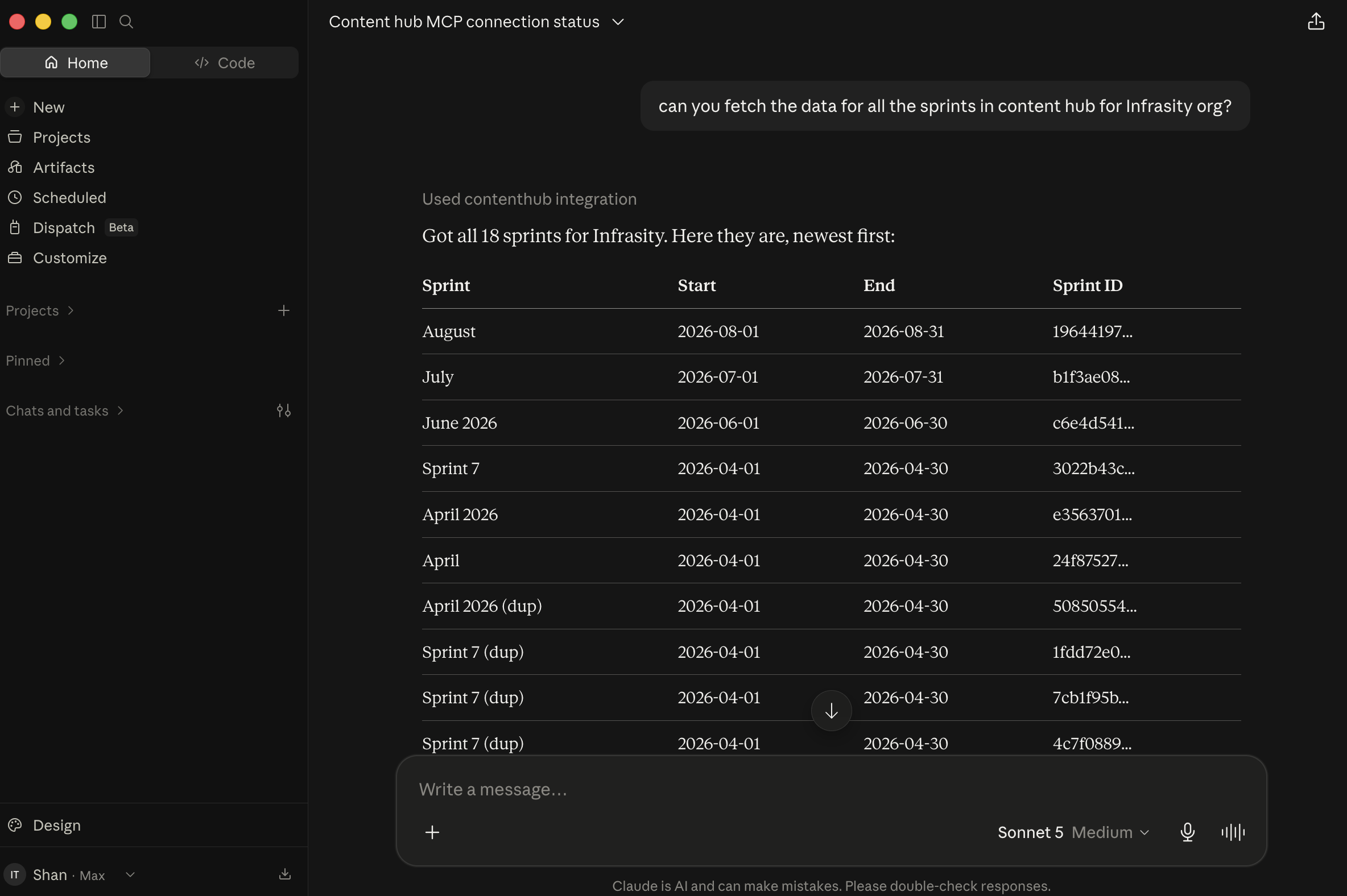
When Claude Desktop is connected to Infrasity Content Hub through MCP, you can create a sprint, add topics, and attach published URLs from chat without opening the dashboard.
Before you start, confirm that Claude Desktop is connected to Content Hub through MCP. If it is not, follow the Content Hub MCP setup guide.
Create a new sprint
Request a new sprint in the Infrasity organization with these details:
- Name: September 2nd half
- Start date: September 16
- End date: September 30
Claude resolves the organization name to its company ID, because the create call requires the ID. It then creates the sprint and returns the result: September 2nd half, running Sep 16 to Sep 30, 2026, with a generated sprint ID such as 21a90725-d227-4238-a414-94748f55b483. Every topic you add next is attached to this ID. Claude then offers to add topics.
Add topics to the sprint
Request two topics in the sprint, each with a title and a target keyword:
| Title | Keyword |
|---|---|
| 10 B2B Influencer Marketing Strategies That Reach Technical Buyers | B2B Influencer Marketing |
| 11 YouTube B2B Marketing Best Practices for DevTool and SaaS Teams | YouTube B2B Marketing |
Creating a topic requires a content_hub field, which identifies the category or hub the piece belongs to. If you do not specify one, Claude asks for it and suggests a default ("Blog") so you can proceed. Both topics are added to the sprint with their titles and keywords and the status "planned". A planned topic exists in the sprint but is not live.
Edit topic details
When a topic goes live, request an update that attaches its published URL. Name each topic and provide its URL.
Claude sets the published_url field on both topics, for example infrasity.com/blog/b2b-influencer-marketing-strategy-technical-buyers for the first topic. Claude does not change the status. Attaching a URL and publishing are separate actions, so you can stage a topic with its live link before you publish it.
To publish, request a status change to "published" for both topics. Claude changes the status from "planned" to "published" and offers to set published_date, the last field needed for a complete record.
These three requests (create the sprint, add topics, update topics as they go live) cover most sprint management. Repeat them for each new planning cycle.
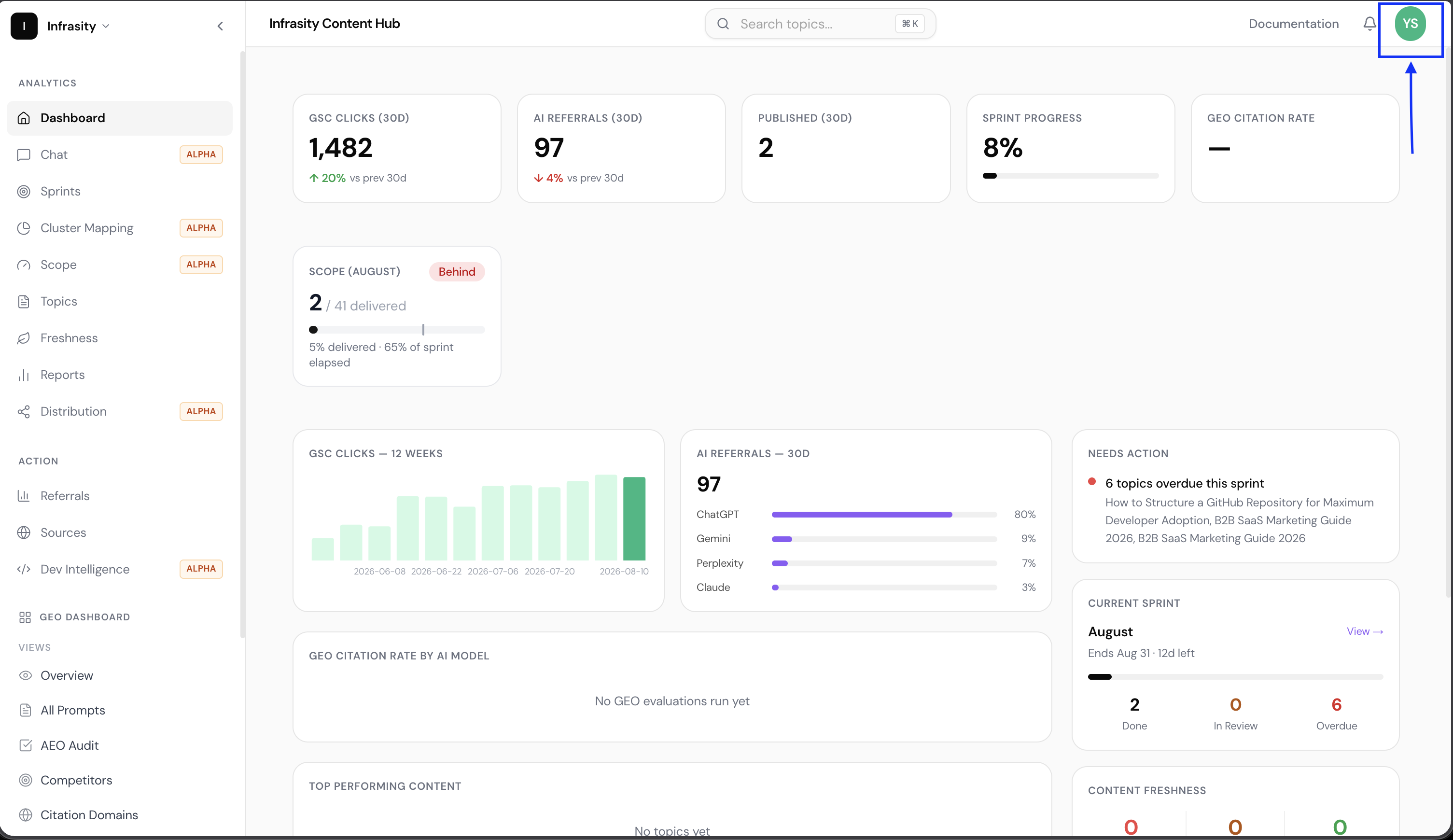
Open app.infrasity.com and check the Sprints tab to see the sprint and topics you created in chat.