How to Fetch the GSC and GA4 Data Using Content Hub MCP
Retrieve Google Search Console and GA4 data for any page in a Claude Desktop chat and have Claude interpret it, without cross-referencing two dashboards.
Google Search Console (GSC) reports how a page performs in Google search: clicks, impressions, CTR, and average position. Google Analytics 4 (GA4) reports what happens after a visitor lands on the page: sessions, conversions, bounce rate, and engagement rate.
The GSC and GA4 dashboards provide raw numbers only. You must open both, align the date range, and interpret the results yourself. Over Content Hub MCP, Claude retrieves both data sources in one request and analyzes them. The result is a prioritized list of next steps.
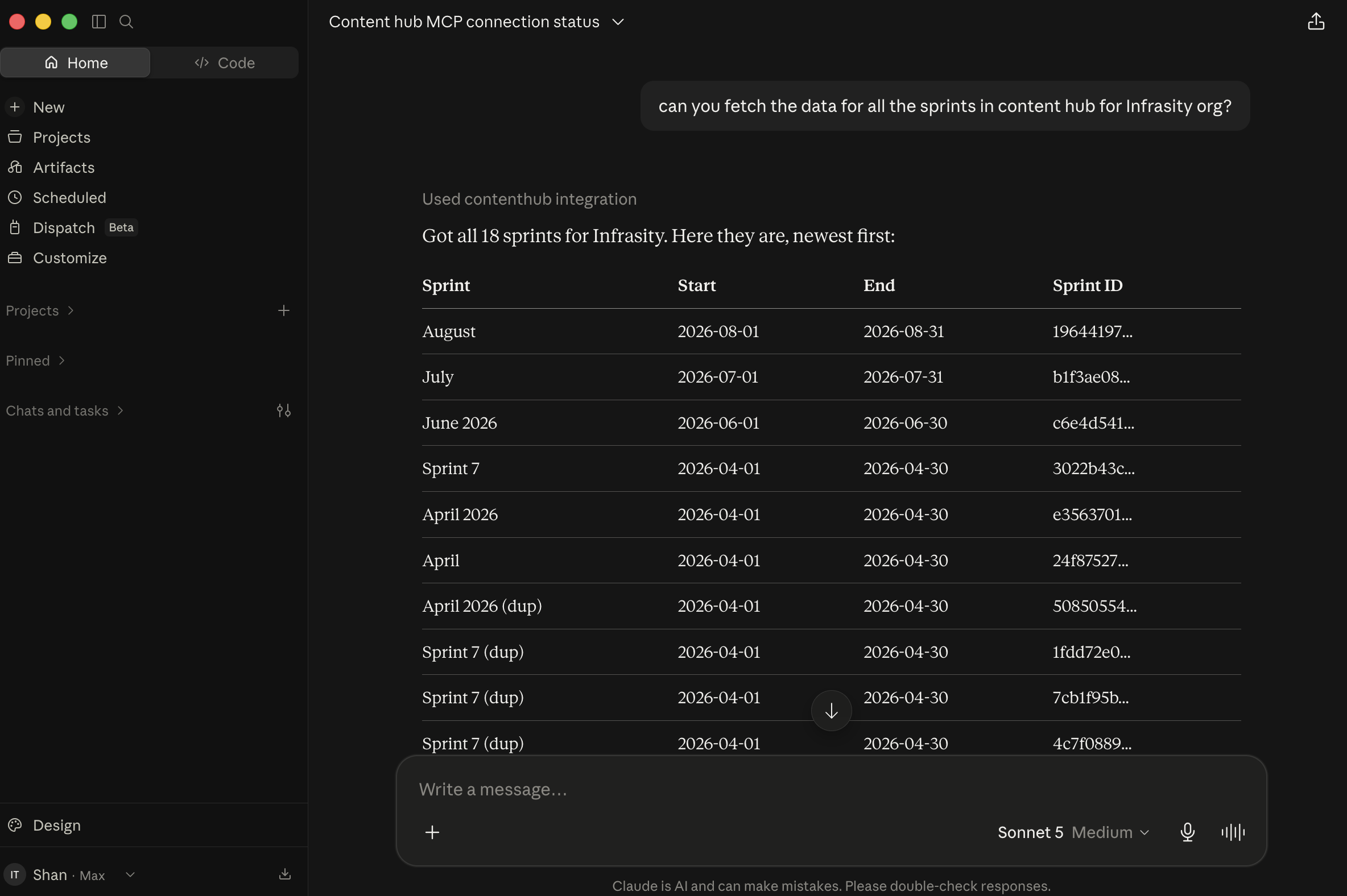
Connect Claude Desktop to Infrasity's Content Hub over MCP (see the Content Hub MCP setup guide).
Before you start
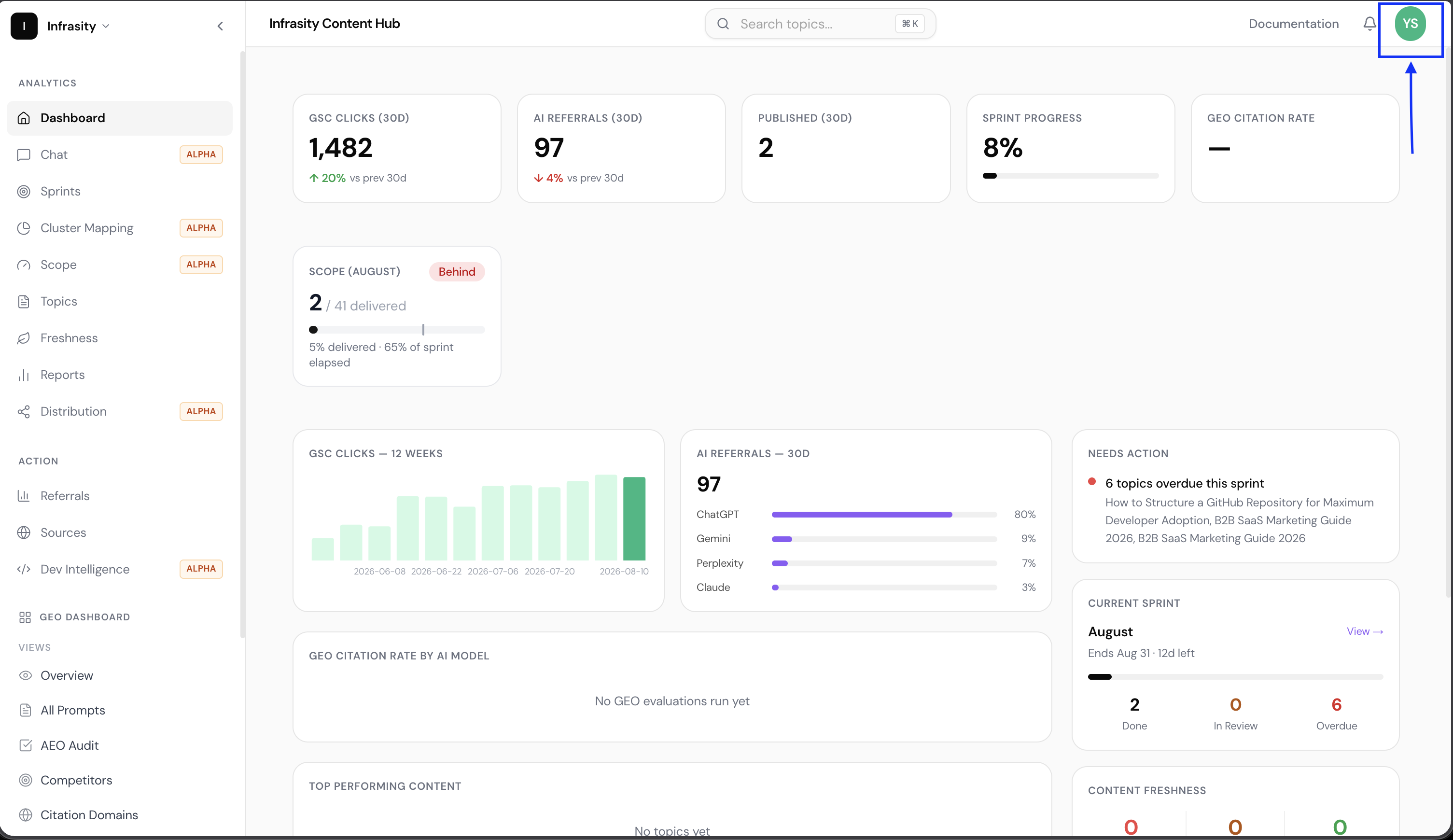
- GSC and GA4 are integrated in Content Hub.
Fetch GSC and GA4 data for your page
Request the GSC and GA4 data for the infrasity.com page, using Content Hub MCP.
Claude returns a comparison against the prior period. For Search Console, it reports clicks, impressions, CTR, and average position. It adds a breakdown of top pages, top queries, and performance by segment, such as blog and services pages, so you can see where movement originates.
For GA4, it reports sessions, users, pageviews, conversions, bounce rate, and engagement rate. It adds a breakdown by channel (Organic Search, Direct, Referral, and others), top landing pages, and AI/LLM referral traffic. Claude closes with a brief summary of the main discrepancy between the two sources and offers to save the report or send it to Slack.
Analyze the data
With the data in the conversation, request an analysis of all of it.
Claude identifies the central discrepancy: clicks held steady while sessions and pageviews dropped. It checks whether Organic Search is the cause and narrows the decline to specific traffic sources and pages instead of treating the site as one figure.
Claude then examines the conversion decline and separates a probable tracking or tagging gap from a genuine quality problem. It identifies, by URL and supporting metric, the pages that are gaining or losing on search.
It closes with AI/LLM referral traffic, which is too small a sample to indicate a trend, and a prioritized list of items to investigate first. Claude offers to extend the analysis to a longer time window.
Request takeaways
Request a condensed list of takeaways for the analysis.
Claude returns a numbered list, each point paired with supporting data. The first three points are:
- SEO is healthy, and the primary problem lies elsewhere.
- Conversions likely dropped partly because of a tracking gap, not because traffic ceased to convert.
- Two specific pages are clear SEO wins.
The remaining points cover one SEO loss to investigate, a slight site-wide position decline, and AI/LLM traffic that is still too early to assess. A priority-ordered list of next steps follows, ranging from fixing the tracking gap to building on pages that are gaining momentum.
The GSC and GA4 data now form a prioritized action list, produced in one Claude Desktop conversation without switching between dashboards.
To check your own top page, open app.infrasity.com and pull GSC and GA4 data for it.